Build a Pipeline from the Workflow
Summary
| To find out more about execution order, go to Scheduling a task pipeline. |
Workflow view
The Workflow makes it easy to visualize and organize a Pipeline of tasks.
Only the Schedule Owner and contributors can create, edit, and delete tasks.
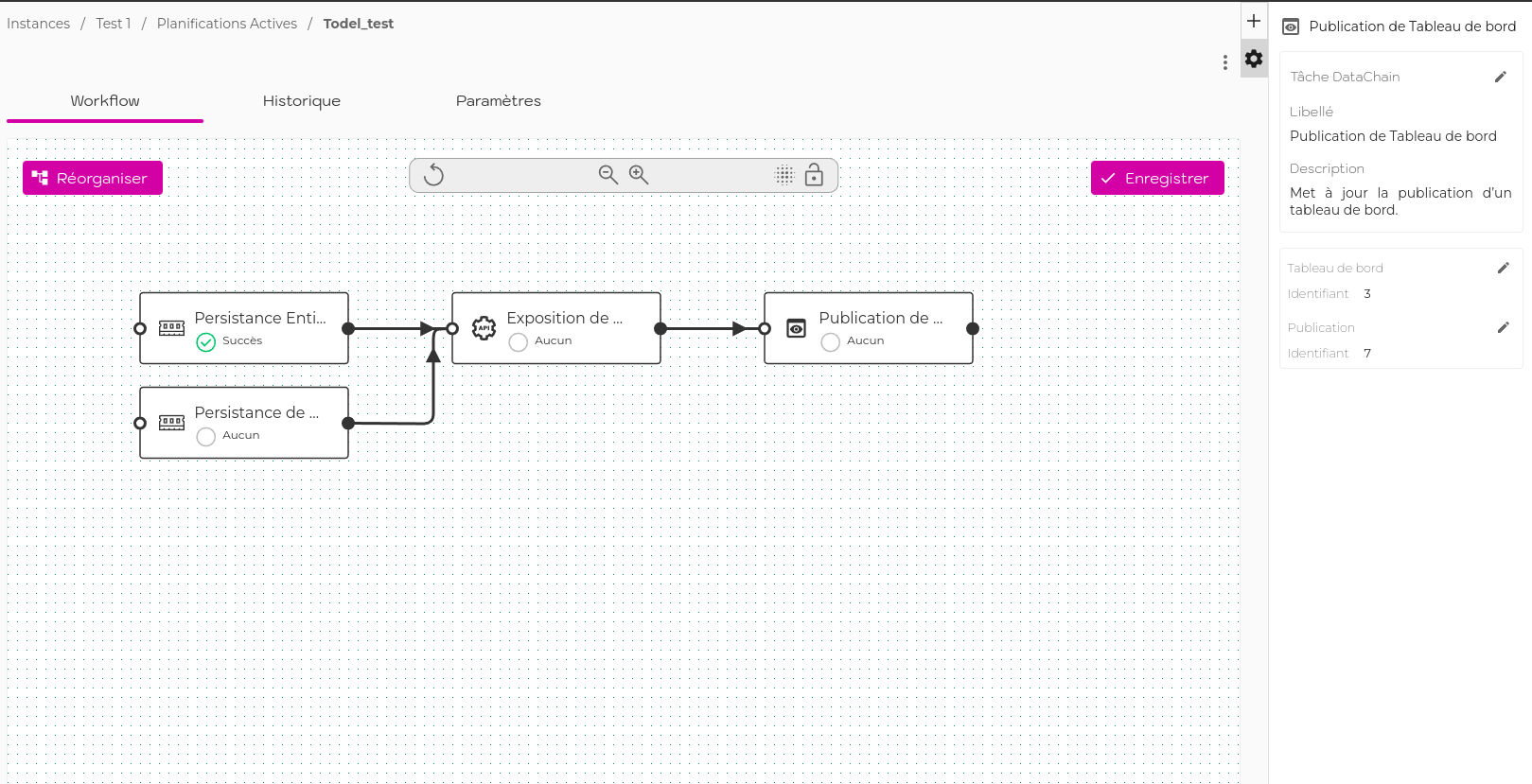
Tasks can be linked together to define an execution order.
If tasks are not linked, DC-Maestro sends all execution requests simultaneously.
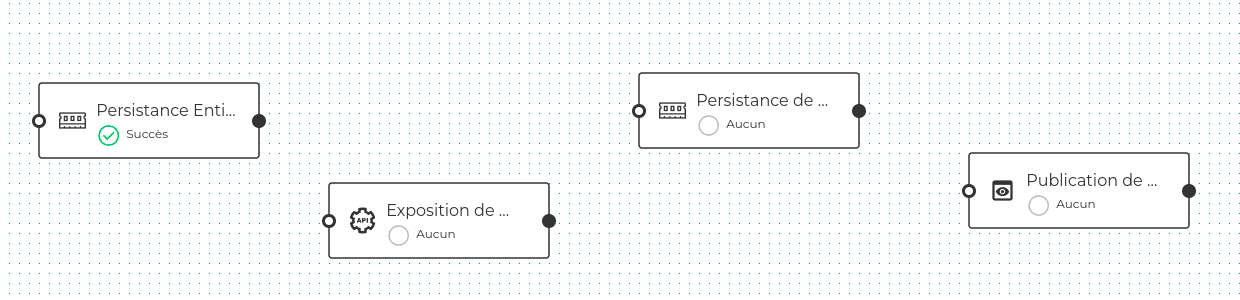
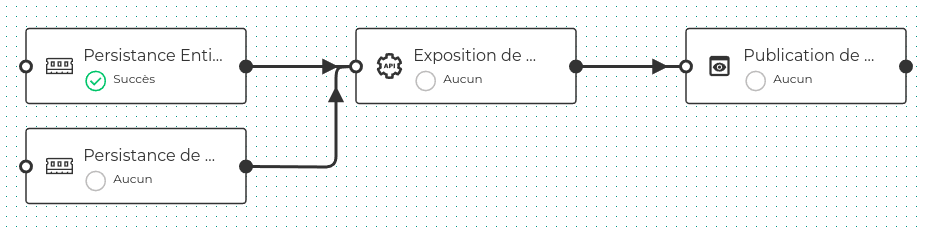
If tasks are linked, DC-Maestro sends the execution requests according to the order defined in the Workflow.
In the example below, the exposure will be executed after the 2 persistence tasks, and only if these are executed successfully.
| To follow step by step the creation of a Pipeline, go to the tutorial page Building a Workflow. |
Automatic Workflow Generation
The automatic calculation function globally optimizes execution performance when updating the output elements of a Project processing chain.
It analyzes the entire Project version linked to the Schedule to determine which elements in the chain must be persisted in order to ensure rapid updates of shared elements (DataLinks, Dashboard Publications, and API Publications).
If Export tasks are already configured in the Workflow, they can be taken into account in the calculation.
|
The presence of persisted elements other than those calculated by DC-Maestro disrupts the proper functioning of the chain. It is therefore necessary to unpersist all Project elements before starting pipeline execution. |
| Not all Project elements that can be persisted are systematically included in the generated Workflow: only elements for which persistence provides a performance gain are included. If no persistance action is required only the Dashboard and API Publications update tasks will be present. |
| It is possible to create the workflow of a chain without output (DataLinks, Expositions or Publications) by configuring an export to a final Datablock and launching the automatic calculation from this task. This does not work at dashboard level. |
If the result of the automatic calculation is empty, this may mean that there are no output elements found in the chain (DataLinks, Expositions, Publications, Exports) or that you do not have sufficient Datachain rights to these elements.
Generate a workflow automatically
| For the workflow generated to be consistent with the project, the user launching the workflow calculation must have full rights to the project elements. |
The automatic workflow generation function can be accessed via the action menu by clicking on the icon  .
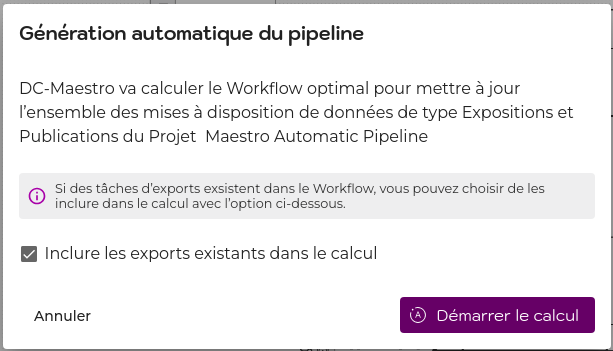
When the automatic calculation is triggered, a configuration modal is displayed which allows the export tasks to be included or not.
| Only registered export jobs are taken into account in the calculation. |
As soon as the calculation is complete, the new Workflow is displayed on the screen +. You must save the changes to retain the new workflow.
If several independent processing chains (i.e. which do not share any elements in common) are present in the Project, these two chains will appear disjoint in the Workflow.
You will need to link them together in the interface if necessary.
If there is no link, these chains will be executed in parallel.
|
To avoid data update inconsistencies, it is not recommended to define several Schedules on the same DataChain Project. It is preferable to duplicate the Project if it contains several disjoint chains to be automated at different frequencies and to conserve a single processing chain in each of the Projects. |
Project change
It is possible to modify the DataChain Project and map existing workflow tasks to items in the new Project.
When you select a new Project and its version, or the same Project with a different version, DC-Maestro automatically associates the most likely elements to map.
| For automatic mapping calculation to work, you must be a member of both Project versions, have sufficient permissions for all elements, and neither version must have been disabled. |
This function preserves the organisation of the workflow and the planning execution history.
It is particularly useful when a new project (V2) is created from a V1 or when a new version of a project is created from the previous version, which can be deleted after mapping.
It is perfectly possible to keep a Schedule for each Project and each of its versions for historical purposes.
It is not necessary to map all the elements to modify the Project, but only the mapped elements will be kept.
You must save the changes to keep the new Workflow.
To undo these changes you can click on the icon  in the Workflow menu. |
Workflow menu
Editing tasks and the Pipeline is done from the Workflow tab.
- Actions menu
-
-
 Saves all the tasks and links in the pipeline to send them to the Orchestrator.
-
 Reorganizes all the elements to refocus them in the zone.
-
Starts the automatic calculation function
-
 Enables you to change the Project and/or its version and map the tasks to new elements
-
- Action menu
-
-
Undo last action (maximum 10)
-
 Zoom in /
 Zoom out
-
 Show /
 Hide grid
-
 Lock /
 Unlock items
-
The menu on the right allows you to add and modify Workflow tasks.
- Task menu
-
-
 Selection of tasks to add in the Workflow
-
 Selected task settings
-
A task settings vary depending on its type.
To select a DataChain item click on  then select the item from the list.
To edit an item already selected, click on  .â
For each task, a timeout can be configured to define the maximum time allocated to its execution and to avoid remaining blocked in case of a problem during task execution.
By default, this time is one hour, and its editing area is located below that of the task element selection.
You can see detailed information about the selected item in the menu on the right.
To see the item’s page in DataChain, click on the ID number in the grey box.
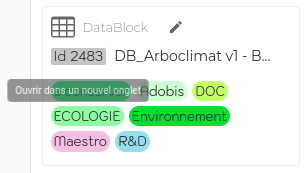
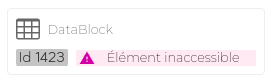
If the instance is unreachable, if the DataChain element is deleted, or if the user does not have sufficient rights, this information is inaccessible and the following message is displayed next to the identifier:
|
Tasks removed from the Pipeline’s Workflow will no longer be executed. A deleted task is still visible from the execution history, but it is no longer possible to access its execution log. |
Dernière mise à jour le 28 octobre 2026 à 16:42