DataLinks
 GenericsData &
 HandleData -
Version 9.2.0
- To manage DataLinks as a Data Producer, you must have the following permissions
-
-
Global permissions (on the user or group)
-
"DataLink - Creation": to create new DataLinks
-
"DataLinks": to view and access the list of DataLinks
-
-
Permission on the data source (DataBlocks)
-
"Sharing": required to select the DataBlock as a source
-
-
Permission on the DataLink
-
"Read": to access the element
-
"Modification": to configure, initialize and update the dataset
-
"Deletion": to delete the element if necessary
-
"Permissions": to manage access for other users
-
-
- To consume a DataLink, you must
-
-
Be a member of a Project subscribed to the DataLink
-
Create a repository that consumes this DataLink
-
DataLinks are used to manage the distribution, to consumer Projects, of a snapshot of a dataset (DataBlock output).
This feature provides fine-grained configuration of the data to be shared, data updates, consumer traceability and the ability to revoke access by Project.
Overview
A DataLink is a shared DataChain element that allows a Producer Project to make a snapshot of a dataset available to other Projects.
This snapshot is generated from the output data of a DataBlock.
The DataLink allows you to
-
precisely define the shared data
-
associate the data with Consumer Projects
-
apply different sharing profiles depending on the Projects
-
track the Projects consuming the data
-
revoke sharing for one or more Consumer Projects
DataLink data is consumed from DataLink repositories in Consumer Projects.
Glossary
| Term | Definition |
|---|---|
DataLink |
Element used to share a dataset from one Project with one or more Consumer Projects. |
Producer Project |
Project containing the source DataBlock and the DataLink. |
Consumer Project |
Project associated with a DataLink profile and authorized to consume the shared data. |
DataLink profile |
Sub-element defining the columns, filter and Consumer Projects associated with a share. |
Column template |
Reusable configuration of the columns exposed in a profile. |
Filter template |
Reusable configuration of a filter applied to the rows exposed in a profile. |
DataLink repository |
Repository created in a Consumer Project to consume data from a DataLink. |
Dataset |
Data file generated when the DataLink is initialized or updated. |
DataLink settings
All DataLink settings can be defined when it is created.
Data source
The source must be an Active DataBlock belonging to the current Project and for which the current user has the Sharing permission. Selecting it is mandatory to create a DataLink.
A DataLink can be created from the Project’s DataLink list (accessible from the side menu) or from the edit page of its future source DataBlock.
Once the source has been selected and the DataLink created, it can no longer be modified.
Columns of type words, binary, files and geometry are not supported by DataLinks.
An impact check message warns the user when attempting to disable or delete a column from a DataBlock used as a source in a DataLink.
| If there is a discrepancy between the columns in the DataLink dataset and those in the source DataBlock (deleted or disabled columns), an information badge notifies the user from the DataLink’s "General" tab. |
The source DataBlock can no longer be deleted as long as it is consumed by a DataLink.
Metadata
To manage DataLink metadata, the Modification permission is required.
Internal
This information is visible only to members of the Producer Project.
| Field | Description | Constraints | Required | Editable |
|---|---|---|---|---|
Label |
DataLink name (default: "DataLink - [DB Name]") |
255 characters maximum |
✅ |
✅ |
Description |
Description for internal use |
2500 characters maximum |
✅ |
|
Tags |
Internal categorization |
10 tags maximum - Maximum tag length: 50 characters |
✅ |
Public
This information is displayed to consumers, particularly in the list of DataLinks available in a Project when creating a new DataLink consumer repository.
| Field | Description | Constraints | Required | Editable |
|---|---|---|---|---|
Title |
Public name of the dataset |
255 characters maximum |
✅ |
✅ |
Details |
Detailed description for consumers |
2500 characters maximum |
✅ |
|
Keywords |
Keywords facilitating searches |
10 tags maximum - Maximum tag length: 50 characters |
✅ |
General column settings
To manage its columns, the Modification permission on the DataLink is required.
The general column settings define the columns of the source DataBlock that will make up the DataLink dataset.
They can be modified at any time.
At least one must be selected to create a DataLink, and this minimum must always be maintained.
Each column must have a unique alias: the "DataLink label".
| Field | Description | Constraints | Required | Editable |
|---|---|---|---|---|
Type |
Type of the column in the source DataBlock. |
- |
- |
- |
Source label |
Label of the column in the source DataBlock. |
- |
- |
- |
Selected |
Makes the column available in DataLink profiles and column templates. |
- |
✅ |
✅ |
DataLink label |
Public name of the column in the DataLink. It is required for active columns and must be unique within the DataLink. |
255 characters maximum |
✅ |
✅ |
Description |
Description of the column exposed to consumers. |
2500 characters maximum |
✅ |
| To disable a column in the general settings, it must not appear in any column or filter template of the DataLink concerned. The column must be removed from every template before it can be disabled. |
DataLink profiles
To manage its profiles, the Modification permission on the DataLink is required.
A DataLink profile defines how a DataLink is shared with one or more Consumer Projects.
A DataLink must contain at least one profile, and this profile must contain at least one column template with at least one column.
It can contain as many filter templates as required (0 or n).
For the same source version of a DataLink, a Consumer Project version is associated with only one profile. However, it can consume several source versions of the same DataLink from different repositories.
A Project can also consume several different DataLinks.
When a DataLink is created, the first profile is preconfigured with a column template containing all DataLink columns.
Profile metadata
| Field | Description | Constraints | Required | Editable |
|---|---|---|---|---|
Label |
Short description of the profile. |
255 characters maximum |
✅ |
✅ |
Description |
Long description of the profile. |
2500 characters maximum |
✅ |
| The DataLink must be updated for changes made to a profile to be applied (modifying the column template, adding or removing filter templates, for example) |
Column templates
To manage its filter templates, the Modification permission on the DataLink is required.
A column template defines the columns that can be consumed by the Projects associated with its profile. It is required when creating a profile.
A default column template is automatically created in the initial profile when a DataLink is created.
It allows a column configuration to be reused across multiple profiles.
It defines the subset of columns (among the enabled general columns) that will be visible for this profile.
| Field | Description | Constraints | Required | Editable |
|---|---|---|---|---|
Label |
Short description of the template. |
255 characters maximum |
✅ |
✅ |
Description |
Long description of the template. |
2500 characters maximum |
✅ |
|
Columns |
List of columns exposed by the template. Only columns enabled in the general settings are available. |
- |
✅ |
✅ |
A column template must contain at least one active column.
| A column template cannot be deleted if it is linked to a DataLink profile. |
| Modifying a column template used by profiles linked to consumer repositories may result in data loss in these repositories when the DataLink is updated (which is required to apply the changes), particularly when columns are removed. |
Filter templates
To manage its filter templates, the Modification permission on the DataLink is required.
A profile can contain an optional filter template used to restrict the rows exposed to Consumer Projects.
A filter template allows a row restriction to be reused in one or more profiles.
The filter is created using a filter creation interface with predefined operators.
| Field | Description | Constraints | Required | Editable |
|---|---|---|---|---|
Label |
Short description of the template. |
255 characters maximum |
✅ |
✅ |
Description |
Long description of the template. |
2500 characters maximum |
✅ |
|
Filter |
List of conditions applied to the data in the DataLink columns |
Valid filter |
✅ |
✅ |
A filter template must contain at least one condition.
Conditions are combined cumulatively (using logical AND/OR operators) when several rules are configured in the filter template.
| A filter template cannot be deleted if it is linked to a DataLink profile. |
| Adding new conditions to a filter template used by profiles linked to consumer repositories may reduce the rows available in these repositories when the DataLink is updated (which is required to apply the changes). |
Consumer Projects
To add consumers, the Modification permission on the DataLink is required.
A share associates a Consumer Project version with a profile of a specific version of the DataLink’s Project. This profile determines the columns and rows to which the consumer has access.
Each share from a DataLink version to a Consumer Project version may involve one or more repositories of that Consumer Project.
Consumer Projects can be added at any time from the Consumer Projects tab.
The selection list displays:
-
Projects not associated with a profile in the current DataLink;
-
Projects of which the user is a member, whether confidential or not;
-
non-confidential Projects in the instance of which the user is not a member.
Adding a Consumer Project to the current DataLink applies to all its versions (existing and future).
To add a Consumer Project:
-
Click the + button on the Consumer Projects tab.
-
Select the appropriate sharing profile.
-
Choose the Project from the list provided and confirm the addition.
The added Project is assigned to the DataLink of the current version of the Producer Project.
The table distinguishes the Consumer Project, its version, the DataLink supplying it, and the version of the DataLink’s Project.
When a DataLink is present in several versions of its Project and the "All versions" option is selected on the "Consumer Projects" tab, the same Consumer Project may appear on several rows, particularly when its repositories consume different versions of the source DataLink.
Once added, the share can be modified, removed or disabled (only if it is consumed by at least one repository).
Disabling or removing the share deprives the affected repositories of data without deleting them.
To disable one or more shares, select them and click Disable in the table header. The button does not respond if the selection does not contain any shares that can be disabled.
Likewise, use Enable to reactivate one or more shares.
Information about the share status and whether it is actually being used is also available in the table’s Status column.
By default, the table displays consumers of the current DataLink version. Displaying all versions also makes it possible to identify those consuming another version.
| In Consumer Projects, the DataLink is available in a list of DataLinks that can be used to create a DataLink repository. |
Change the DataLink version used by consumers
Version switching allows the producer to change the source version of the same DataLink used by a Consumer Project version.
The share is the unit of switching: it associates a Consumer Project version with a DataLink profile in a Producer Project version. A single share may be used by multiple consumer repositories.
Switching reassigns this share to the current DataLink version in the Producer Project. The current version is therefore the target version, while the version used before switching is the original source version.
All repositories in the same Consumer Project version using the same DataLink source version are affected together. By contrast, repositories consuming another source version of that DataLink are not affected by switching this share.
| Switching from the Producer Project does not necessarily affect all DataLink consumers: only selected and eligible shares are affected. |
Example
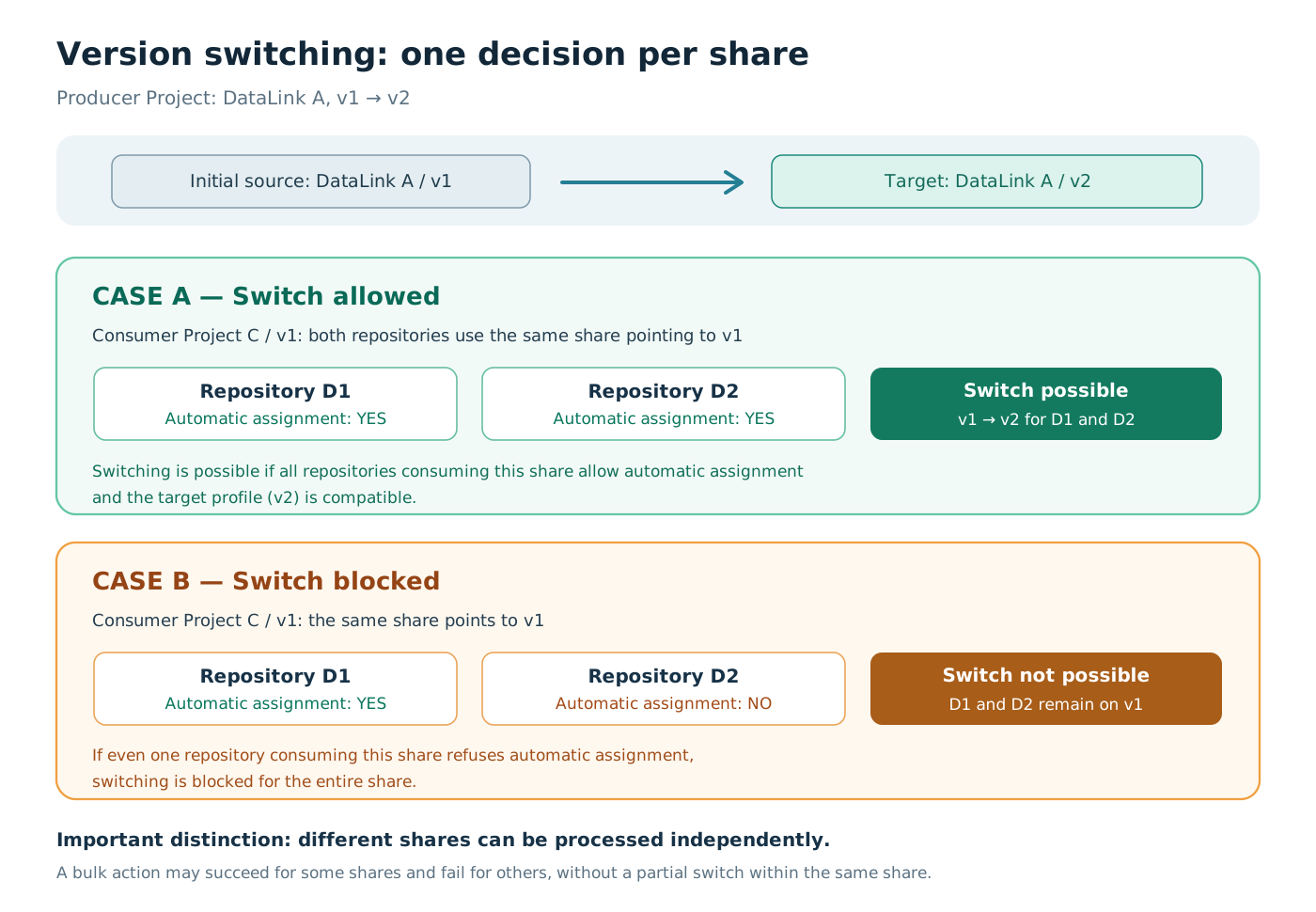
In the following example, the Producer Project contains two versions of the same DataLink A: v1 (the version initially consumed) and v2 (the current version, which is the switch target). Version 1 of Consumer Project C contains two repositories, both consuming version 1 of DataLink A.
-
Case A — Switching possible: repositories
D1andD2both allow automatic assignment. Provided the remaining conditions are met, their share can be switched fromv1tov2, and both repositories change source versions. -
Case B — Switching impossible:
D1allows automatic assignment, butD2does not. The share cannot be switched: bothD1andD2keepv1as their source version.
| Switching a share is indivisible: if even one repository using that share refuses the change, switching is blocked for all affected repositories. A share cannot be partially switched. |
Switching conditions
To switch consumers from the Producer Project, the Modification permission on the DataLink is required.
For a share to be switched to the current DataLink version:
-
Different version: the share must currently use a source version other than the current version selected as the target.
-
Compatible target profile: the profile used in the target version must contain at least all columns shared by the previous profile. It may therefore expose additional columns.
-
Automatic assignment allowed: every repository using this share must allow the producer to change its source version.
If no repository is currently consuming the share, it cannot be switched. A share must be in use for the source version it consumes to be changed to the current DataLink version.
| This authorization is configured in each consumer repository using the Automatic assignment option. |
Understanding blocking scenarios
| Situation | Consequence | Possible action |
|---|---|---|
A repository using the share does not allow automatic assignment. |
Switching is blocked for all repositories using this share, including those that allow it. |
Enable automatic assignment in each affected repository, then retry the switch. |
The target profile does not expose all columns shared by the original profile. |
The share is incompatible with the target version and cannot be selected for a bulk switch. |
Adjust the target profile configuration to make the share compatible. |
The share already uses the current version. |
There is no need to switch to the same version. |
No switching action is needed for this share. |
No repository is currently using the share. |
The share is unused and therefore cannot be switched to another version of the current DataLink. |
- |
If a Consumer Project version contains repositories using different source versions of the same DataLink, each share is evaluated separately. A repository consuming v1 that refuses automatic assignment does not, by itself, block switching another share consuming v2.
|
Switch one or more consumers of a DataLink
The Consumer Projects tab displays the Consumer Project, its version and the DataLink source version used for each share.
This operation allows you to select one or more shares of the same DataLink and reassign them to its current version.
-
Open the DataLink in the Producer Project version to use as the target.
-
Click Change version to open the Switch to current version window.
-
Review the Consumer Projects, their versions and the source versions of the DataLinks they currently use.
-
Adjust the selection to keep only the shares to be switched.
-
Click Change version.
-
Check the switching result and the DataLink source versions now assigned to consumers in the Consumer Projects table.
Shares that do not meet the switching conditions, particularly because automatic assignment is refused or the target profile is incompatible, cannot be selected.
| A bulk switch may succeed for some shares and fail for others. This partial success applies to separate shares: it does not mean that only some repositories of a single share were switched. |
Switch consumers of several DataLinks
This operation initiates switches for shares of multiple DataLinks in the Producer Project version selected as the target.
-
Open the Producer Project version that is to become the consumers' source.
-
From the DataLinks list, click Change version.
-
In the window, check each DataLink, Consumer Project and its version.
-
Adjust the selection, then click Change version.
-
Review the results and check the source versions assigned to the affected consumers.
| If an error occurs during a bulk operation, some shares may have been switched while others were not. Refresh the table to check the status of each share before trying again. |
| When a producer changes the source version assigned to a consumer, members of the Consumer Project are notified by email. For other version-related notifications, see Version-related notifications. |
Version-related notifications
When a producer changes the version assigned to a consumer, members of the Consumer Project are notified by email. When the consumer makes the change from a repository, members of the Producer Project are notified.
When the default version of the Producer Project (from which the source DataLink originates) is changed, consumers whose repositories do not allow automatic assignment receive a notification so that they can decide whether to change their source.
Notifications also report access removal, deletion of the producer version or restoration of access after a producer import. The repositories mentioned in the messages depend on the recipient’s viewing permissions.
DataLink management
The DataLink is the DataChain element that manages a published dataset corresponding to the data and structure captured at a specific point in time from the output of its source DataBlock.
Once the DataLink has been created, it can be initialized, updated, suspended or reset (by deleting the data from its dataset). It can also be deleted.
Access, modification, deletion and permission-management rights can also be configured.
| The published dataset does not provide direct, continuous access to the source DataBlock. Consumers access the latest published snapshot of the dataset in the source version assigned to them. Updating the data does not cause them to switch Project versions. |
Initialize the dataset
Initialization creates the published dataset based on the settings of the created DataLink.
The Initialize action is available when:
-
the dataset has not yet been created;
-
the user has the
Modificationpermission on the DataLink; -
the user has sufficient permissions on the source DataBlock columns.
Initialization is required to share the data.
If the user does not have sufficient permissions on the source columns, the action is blocked by a consistency check.
Update the dataset
An update replaces the published dataset with a new snapshot of the source DataBlock data.
The action is available when:
-
the DataLink has already been initialized;
-
the user has the
Modificationpermission on the DataLink; -
the user has sufficient permissions on the source DataBlock columns.
The update applies to repositories consuming the DataLink current version.
If a DataLink column consumed in a consumer repository is disabled and the DataLink is subsequently updated, the column’s data is set to null in the repository.
Change the publication status
The publication status indicates whether subscribed Projects can consume the dataset.
The action is available when
-
the DataLink has already been initialized;
-
the user has the
Modificationpermission on the DataLink;
| Status | Effect |
|---|---|
Available |
The DataLink is visible in subscribed Projects and the dataset can be consumed. |
Unavailable |
The DataLink is visible in subscribed Projects, but the dataset cannot be consumed. |
| Disabling the dataset makes the data unavailable to all consumer repositories associated with the DataLink. All data becomes null. |
Delete the data
The action is available when
-
the DataLink has already been initialized;
-
the user has the
Modificationpermission on the DataLink;
When the DataLink has been initialized, the user can delete the published data.
The action is available only if the dataset exists. After deletion, consumer repositories can no longer consume DataLink data until a new dataset is created by updating the DataLink.
Delete the DataLink
The action is available when:
-
the DataLink has been created;
-
the user has the
Deletionpermission on the DataLink;
Deleting a DataLink is permanent.
It results in:
-
deletion of the element;
-
loss of access to the dataset for consumer Projects;
-
removal of access to the DataLink data and metadata for consumer repositories (which therefore become unusable because they cannot switch to another DataLink).
The DataLink can be deleted from the DataLink list or from the edit page of the DataLink to be deleted (see drawer menus).
| This action is permanent. A deleted DataLink cannot be restored. |
DataLink data simulation
Once a DataLink has been created, the data it may share through its first profile and associated templates (column and filter templates) can be previewed by clicking the Simulate button.
The form that opens then allows you to select a profile or templates (column or filter) to test, filter the columns to display and define the sort order for displaying their content.
Clicking Test then displays the data made available in this way.
| You can choose between viewing the output data from the DataLink’s source DataBlock and the data published by the DataLink at the time of the simulation. |
Dernière mise à jour le 28 octobre 2026 à 18:35